# App analytics
Source: https://docs.streamlit.io/deploy/streamlit-community-cloud/manage-your-app/app-analytics
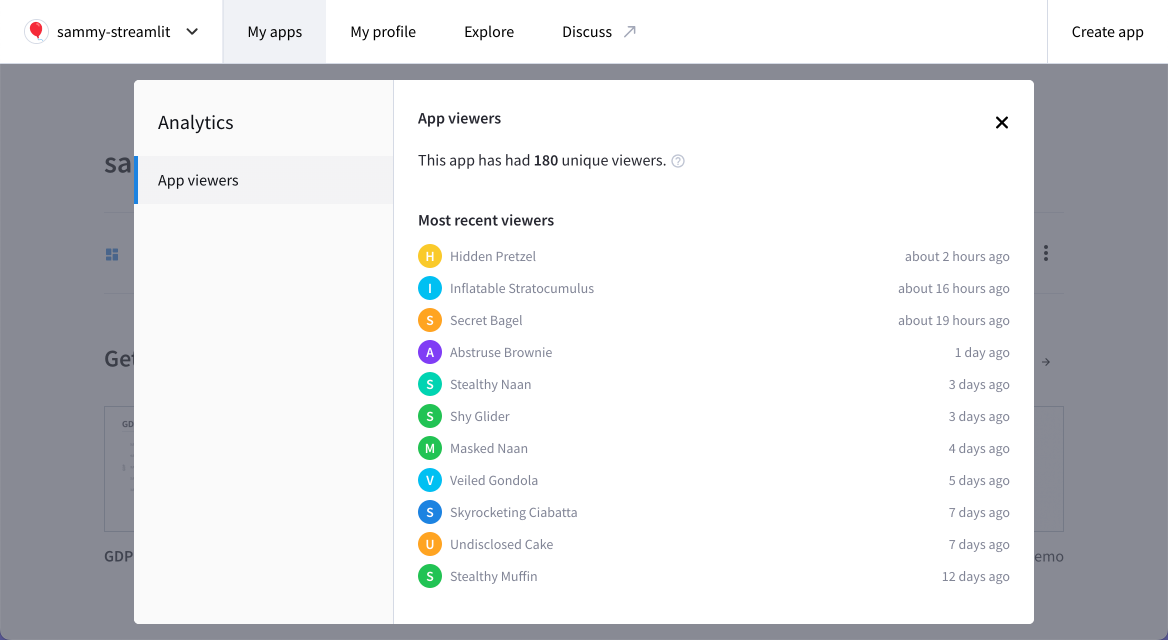
Streamlit Community Cloud allows you to see the viewership of each of your apps. Specifically, you can see:
- The total viewers count of your app (counted from April 2022).
- The most recent unique viewers (capped at the last 20 viewers).
- A relative timestamp of each unique viewer's last visit.
## Access your app analytics
You can get to your app's analytics:
- [From your workspace](#access-app-analytics-from-your-workspace).
- [From your Cloud logs](#access-app-analytics-from-your-cloud-logs).
### Access app analytics from your workspace
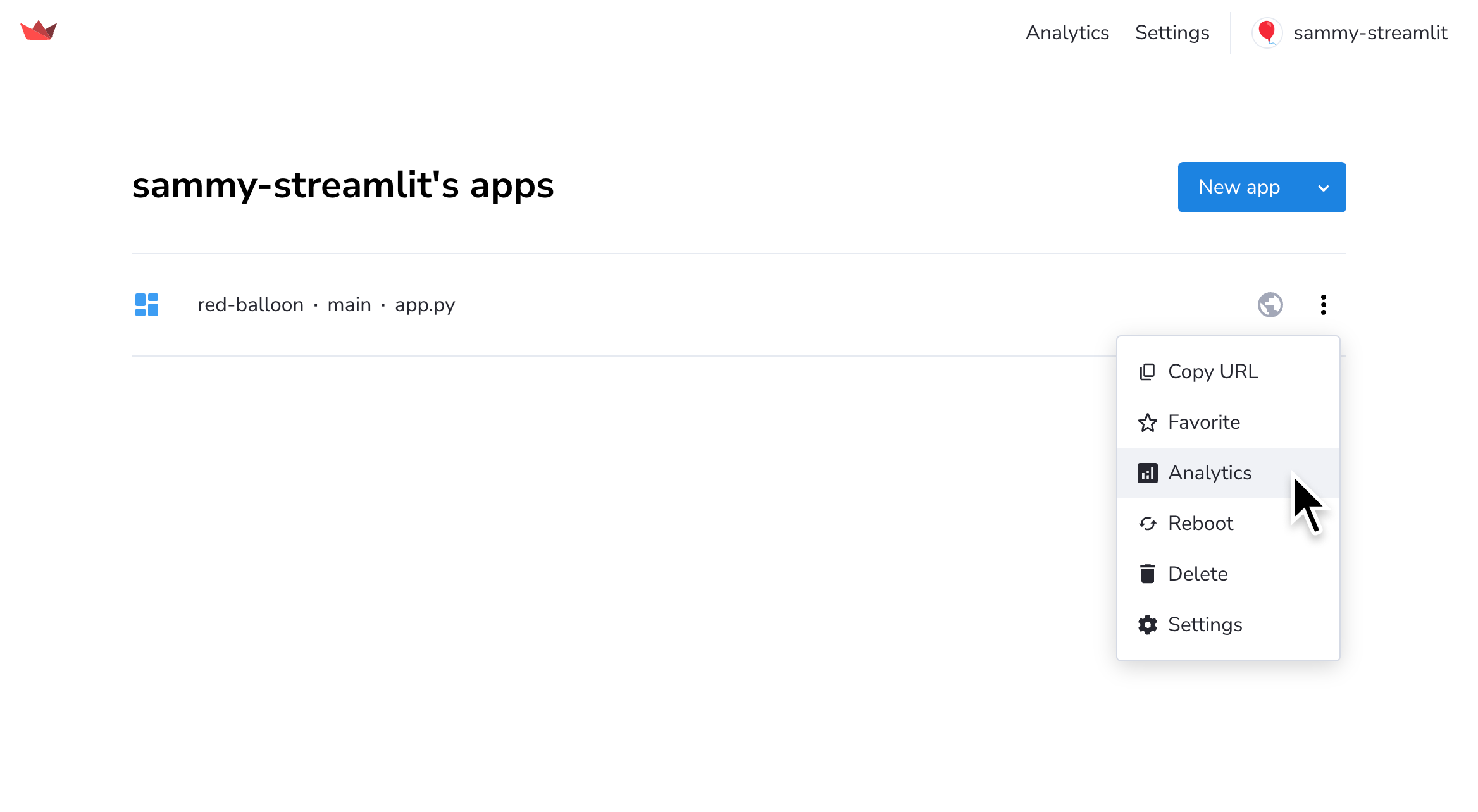
From your workspace at share.streamlit.io, click the overflow icon (`more_vert`) next to your app. Click "**Analytics**."
### Access app analytics from your Cloud logs
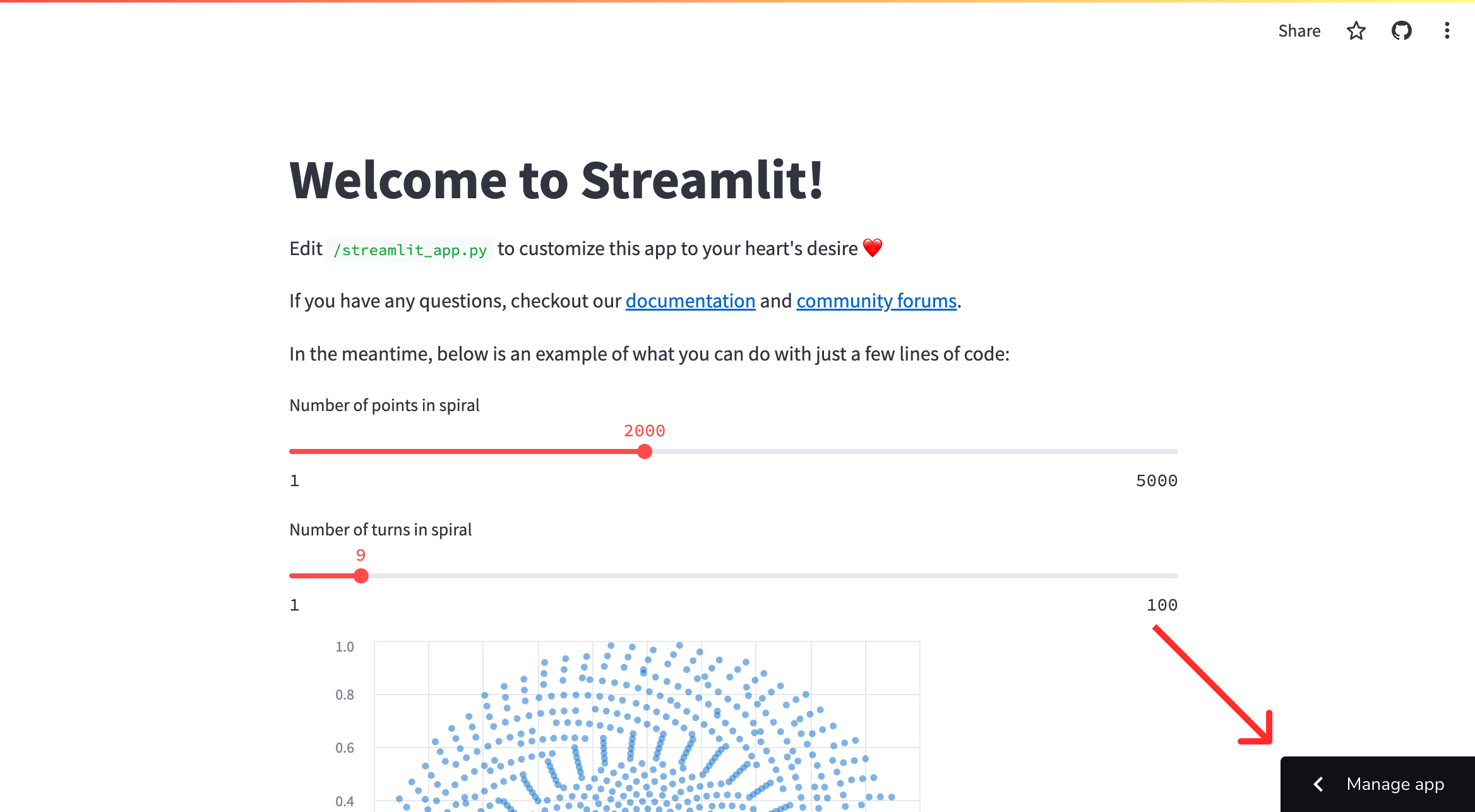
From your app at `.streamlit.app`, click "**Manage app**" in the lower-right corner.
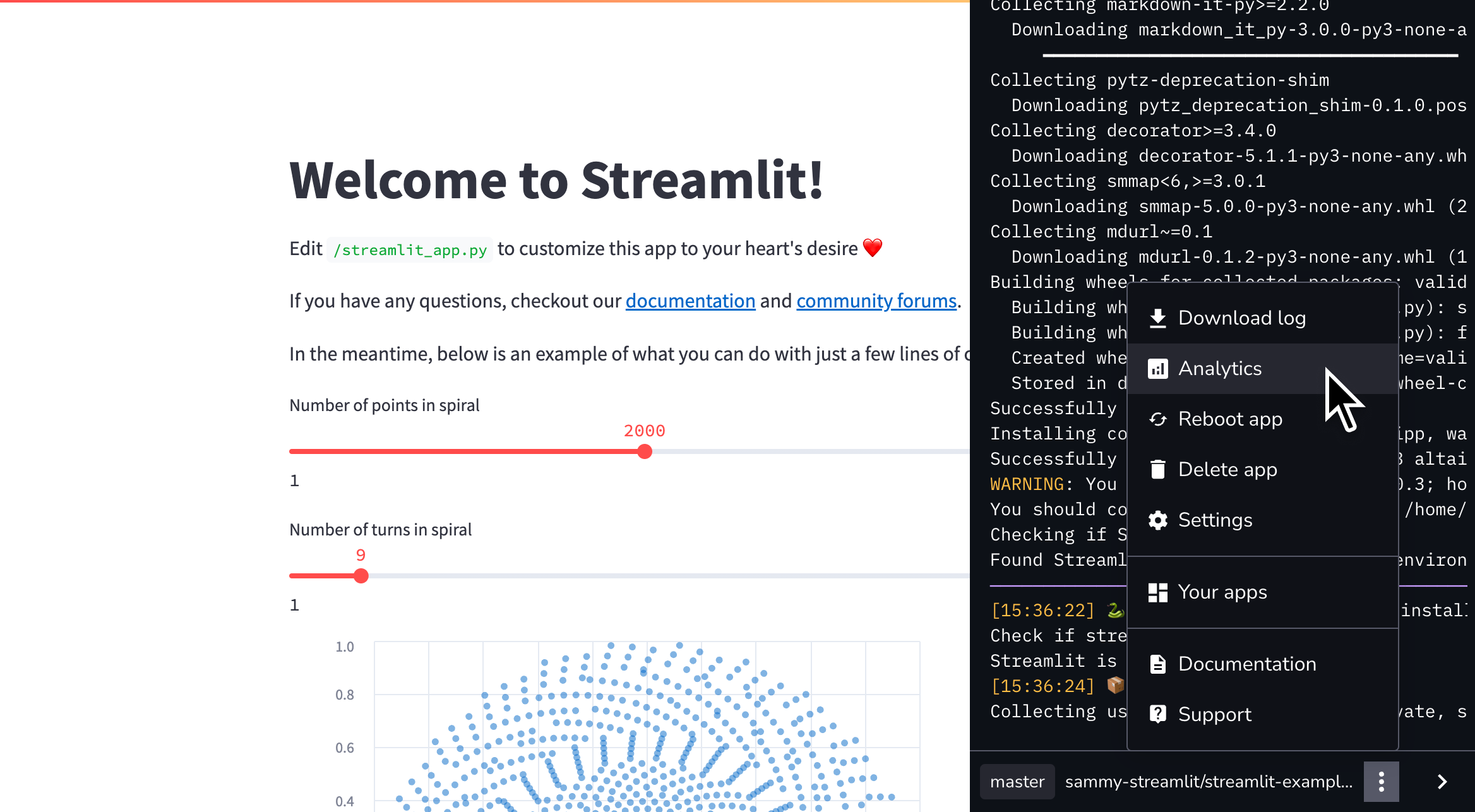
Click the overflow menu icon (`more_vert`) and click "**Analytics**."
## App viewers
For public apps, we anonymize all viewers outside your workspace to protect their privacy and display anonymous viewers as random pseudonyms. You'll still be able to see the identities of fellow members in your workspace, including any viewers you've invited (once they've accepted).
> **Important**
>
> When you invite a viewer to an app, they gain access to analytics as well. Additionally, if someone is invited as a viewer to _any_ app in your workspace, they can see analytics for all public apps in your workspace. Only developers can invite additional viewers. Invited viewers do not see the **Share** button. A viewer in your workspace may see the emails of developers and other viewers in your workspace through analytics.
Meanwhile, for private apps where you control who has access, you will be able to see the specific users who recently viewed your apps.
Additionally, you may occasionally see anonymous users in a private app. Rest assured, these anonymous users _do_ have authorized view access granted by you or your workspace members.
Common reasons why users show up anonymously are:
- The app was previously public.
- The given viewer viewed the app in April 2022, when the Streamlit team was honing user identification for this feature.
See Streamlit's general Privacy Notice.