# App settings
Source: https://docs.streamlit.io/deploy/streamlit-community-cloud/manage-your-app/app-settings
This page is about your app settings on Streamlit Community Cloud. From your app settings you can [view or change your app's URL](https://docs.streamlit.io/deploy/streamlit-community-cloud/manage-your-app/app-settings#view-or-change-your-apps-url), manage [public or private access to your app](https://docs.streamlit.io/deploy/streamlit-community-cloud/share-your-app), and update your saved [secrets for your apps](https://docs.streamlit.io/deploy/streamlit-community-cloud/deploy-your-app/secrets-management).
## Access your app settings
You can get to your app's settings:
- [From your workspace](#access-app-settings-from-your-workspace).
- [From your Cloud logs](#access-app-settings-from-your-cloud-logs).
### Access app settings from your workspace
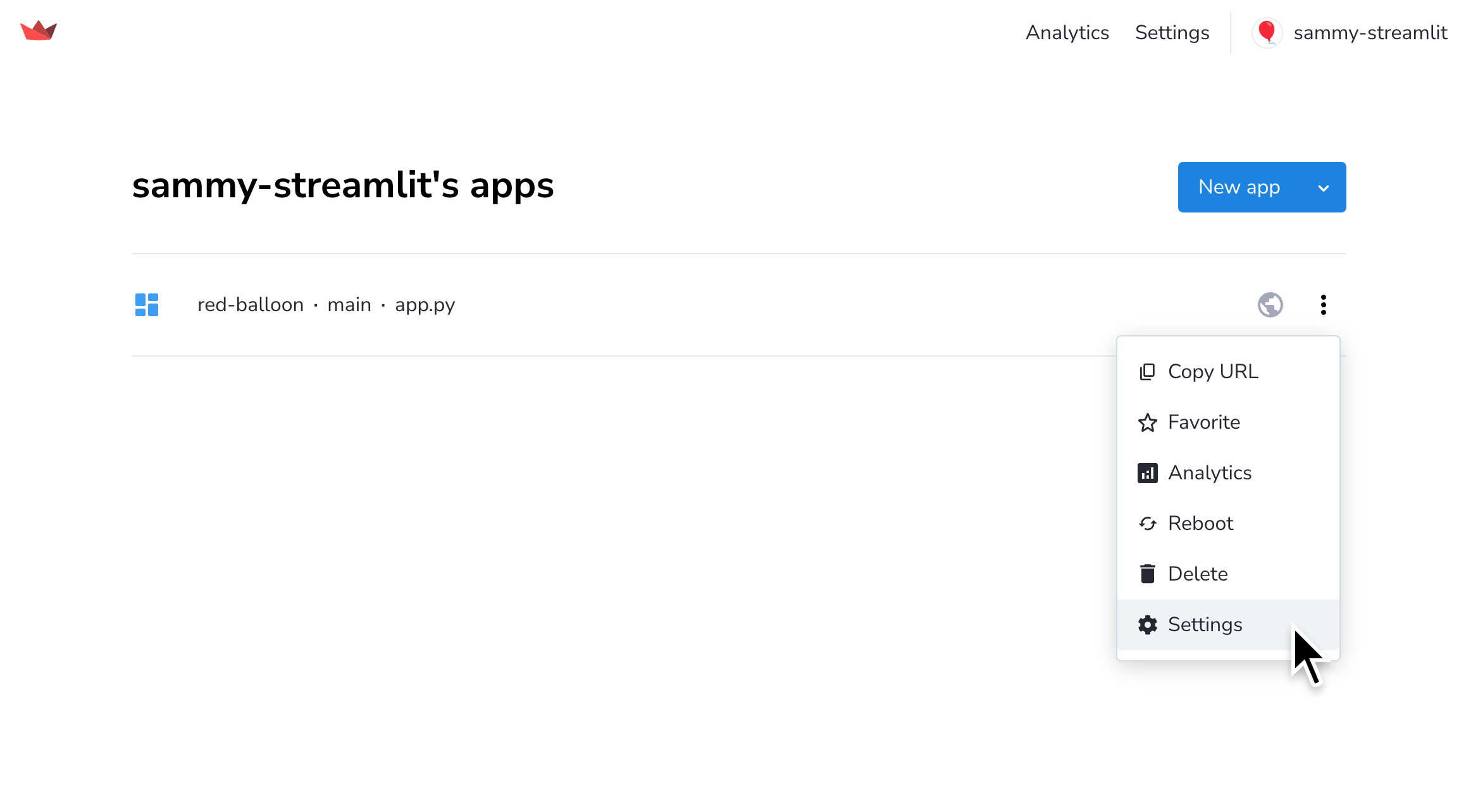
From your workspace at share.streamlit.io, click the overflow icon (`more_vert`) next to your app. Click "**Settings**."
### Access app settings from your Cloud logs
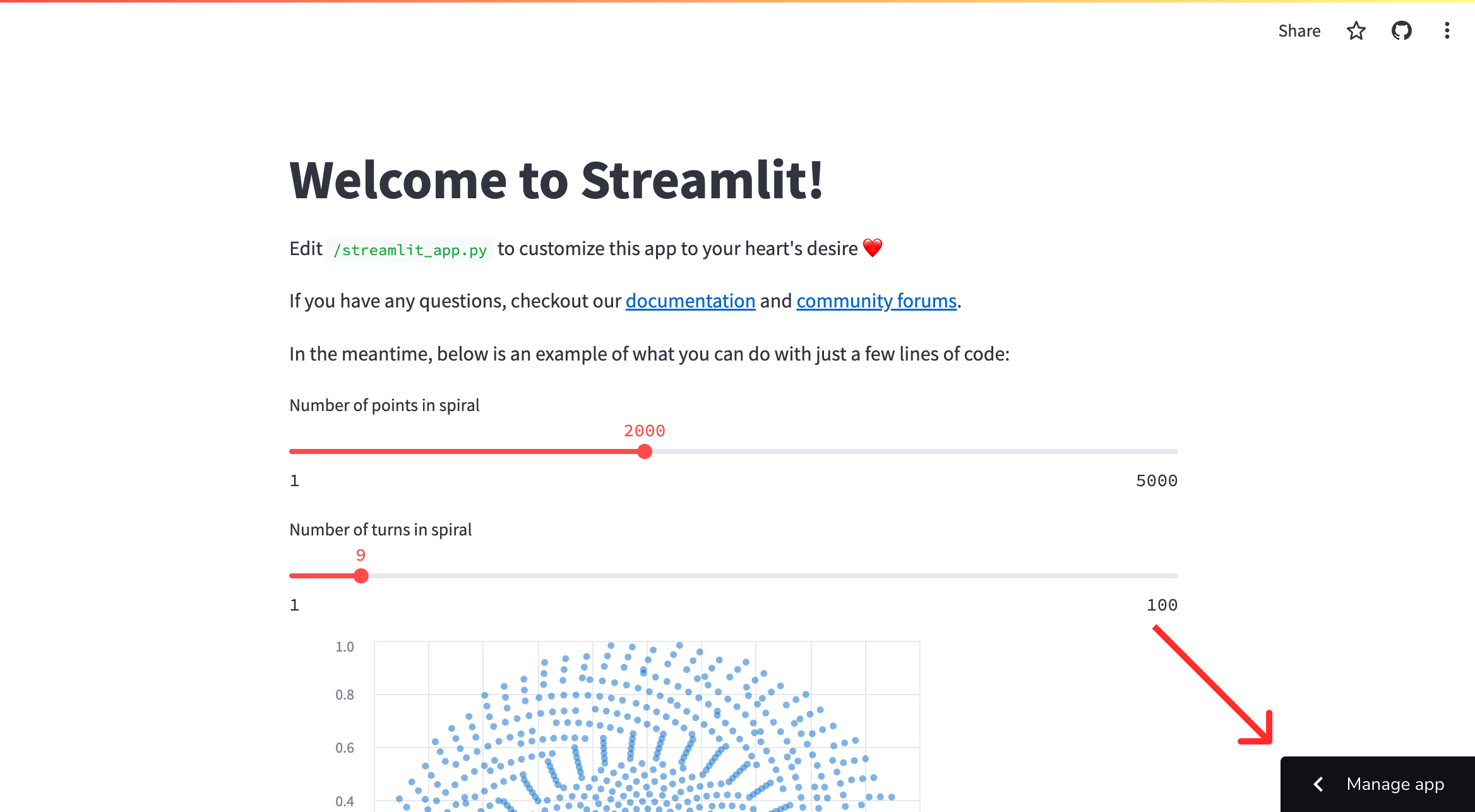
From your app at `.streamlit.app`, click "**Manage app**" in the lower-right corner.
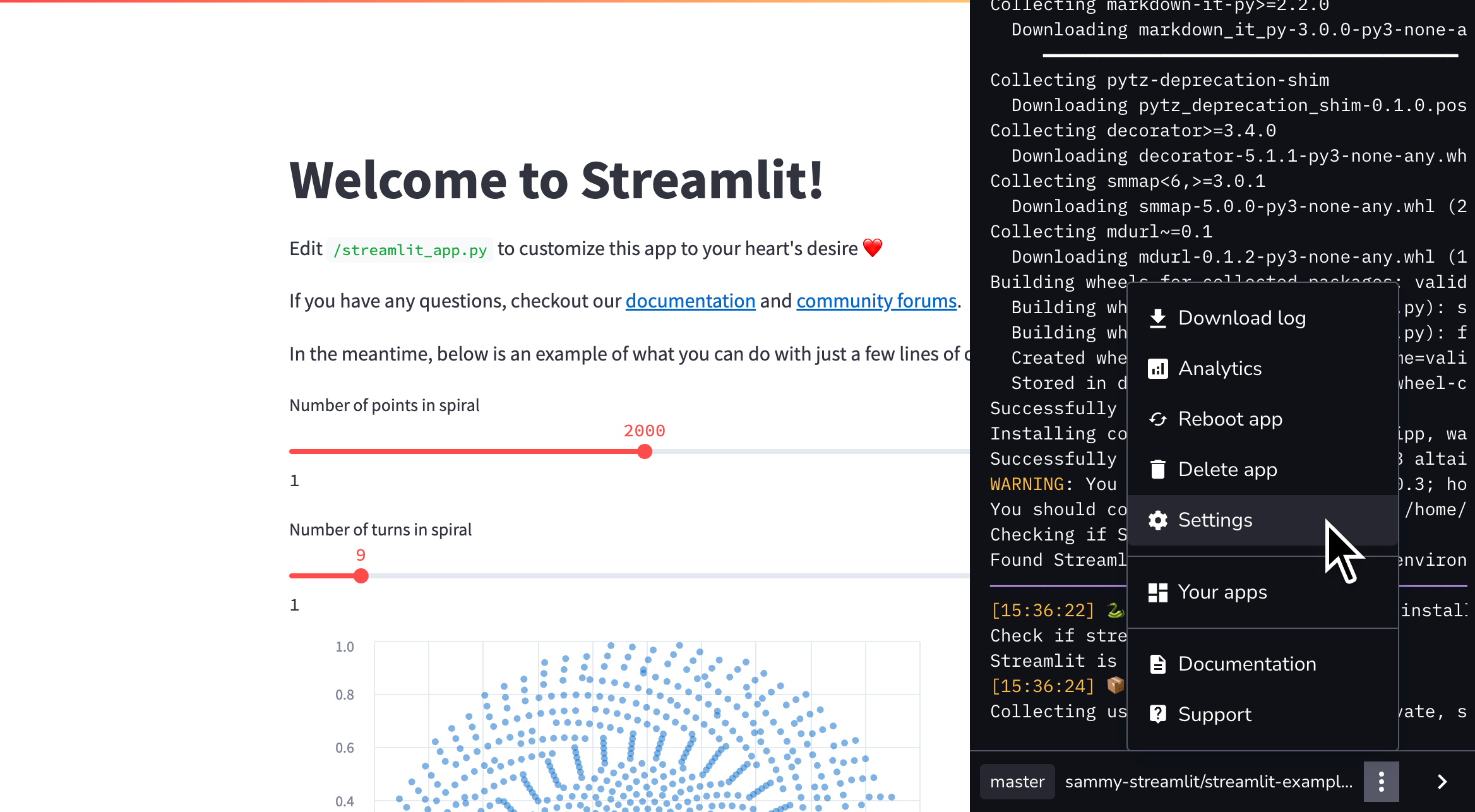
Click the overflow menu icon (`more_vert`) and click "**Settings**."
## Change your app settings
### View or change your app's URL
To view or customize your app subdomain from the dashboard:
1. Access your app's settings as described above.
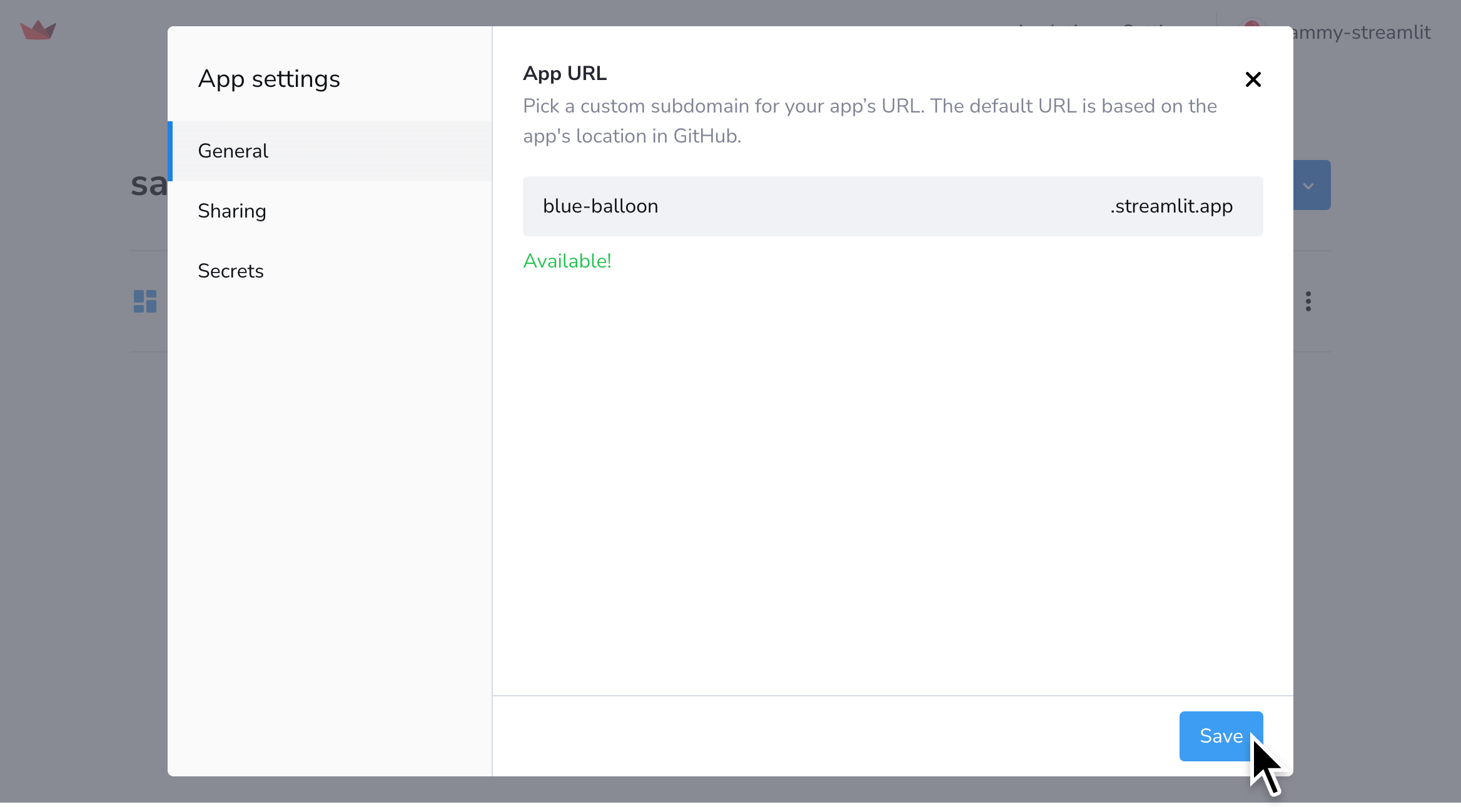
1. On the "**General**" tab in the "App settings" dialog, see your app's unique subdomain in the "App URL" field.
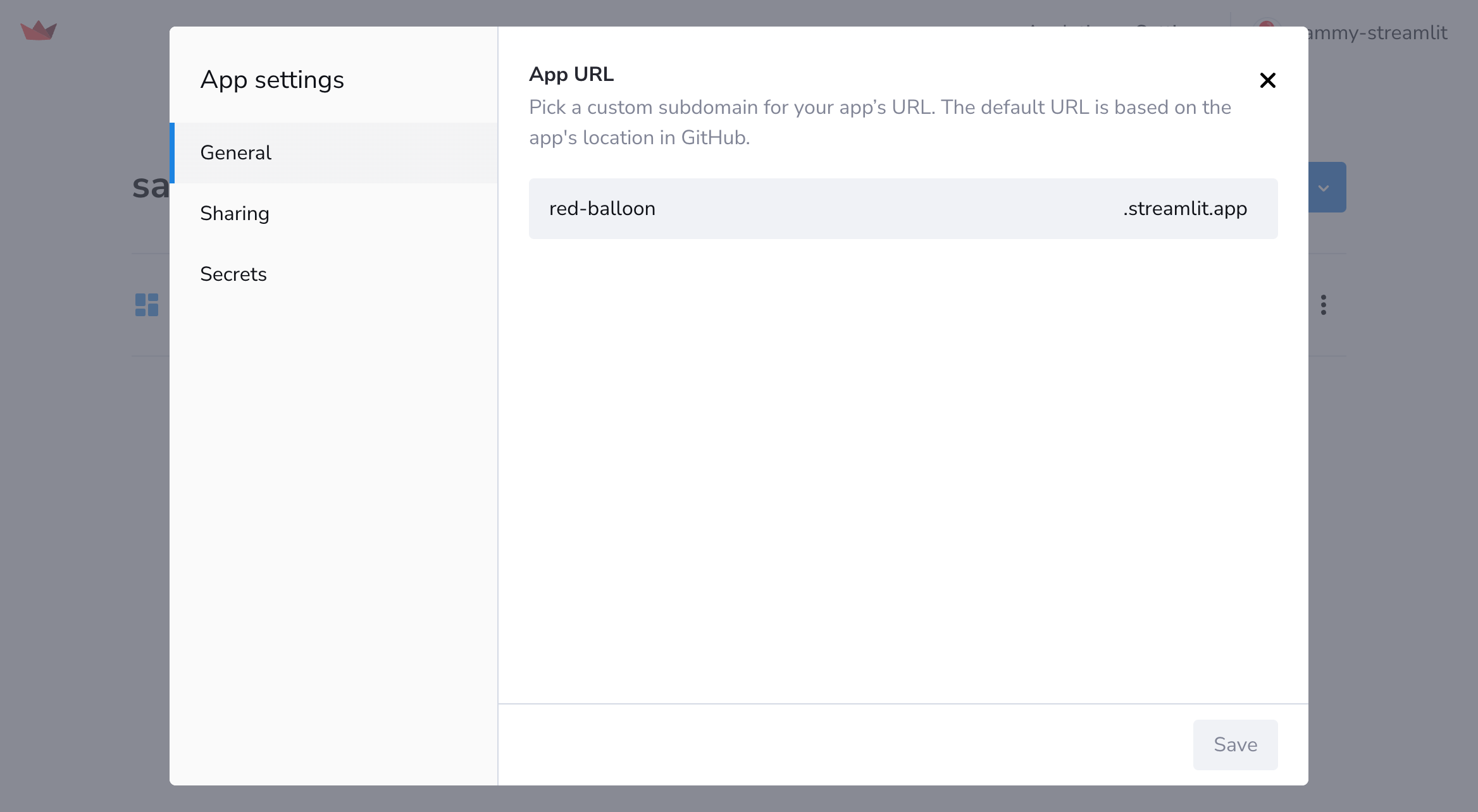
1. Optional: Enter a new, custom subdomain between 6 and 63 characters in length, and then click "**Save**."
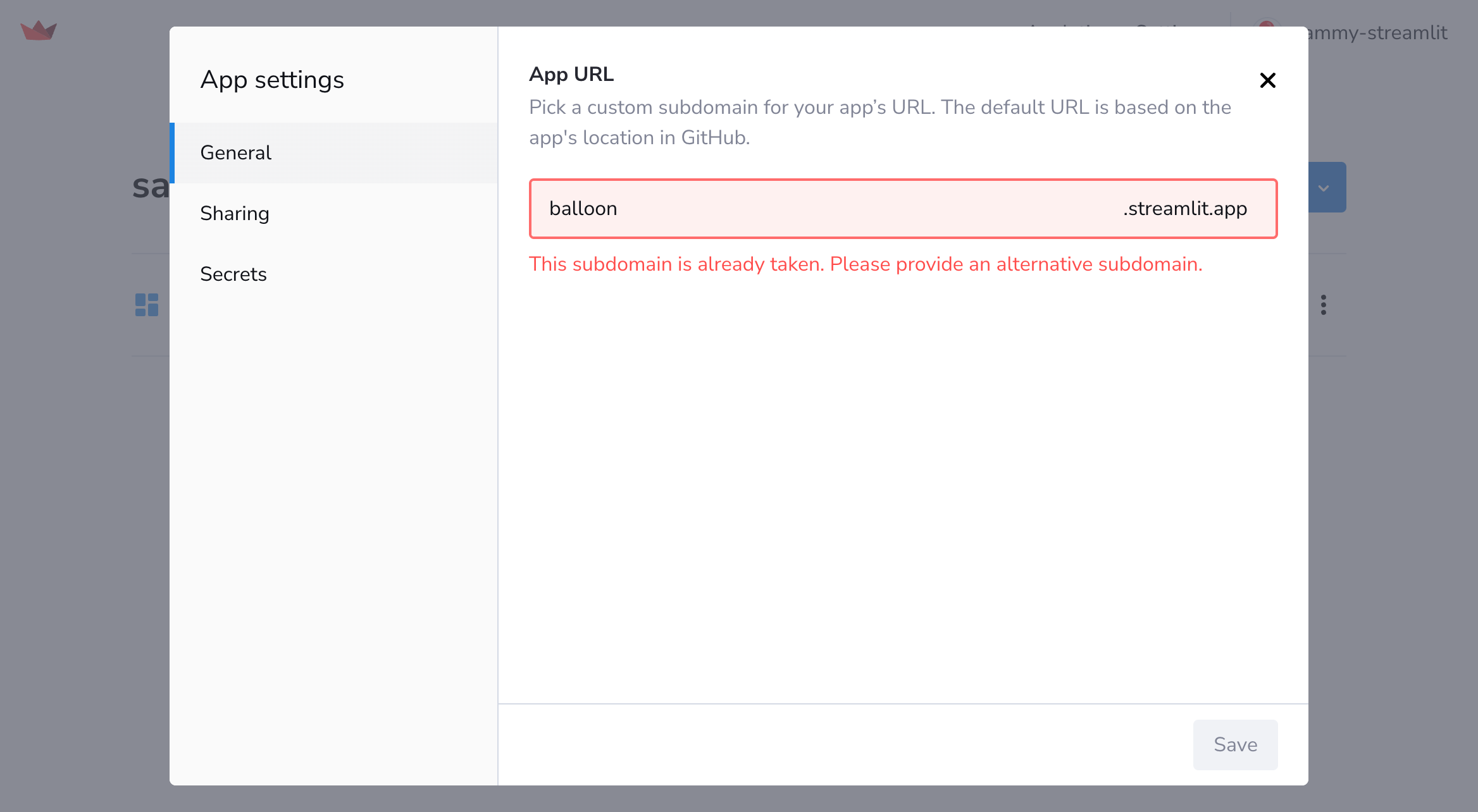
If a custom subdomain is not available (e.g. because it's already taken or contains restricted words), you'll see an error message. Change your subdomain as indicated.
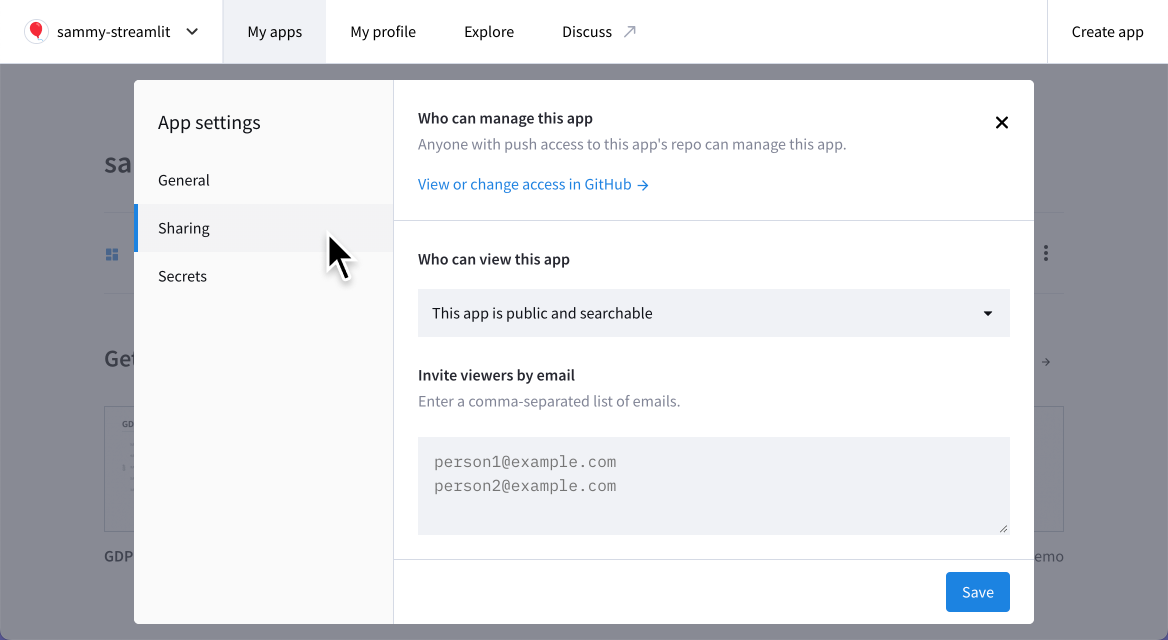
### Update your app's share settings
Learn how to [Share your app](https://docs.streamlit.io/deploy/streamlit-community-cloud/share-your-app).
### View or update your secrets
1. Access your app's settings as described above.
1. On the "**Secrets**" tab in the "App settings" dialog, see your app's secrets in the "Secrets" field.
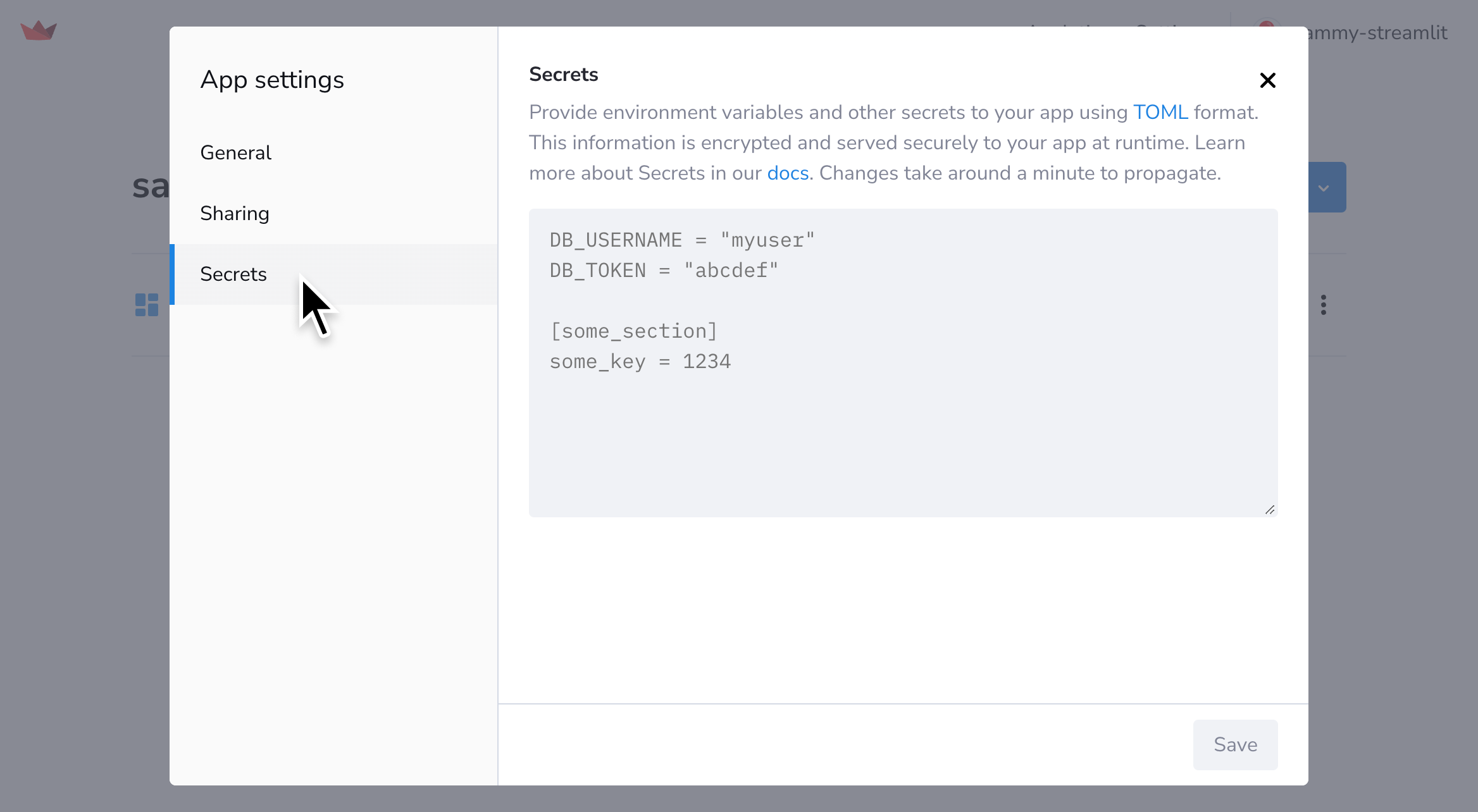
1. Optional: Add, edit, or delete your secrets, and then click "**Save**."
Learn more about [Secrets management for your Community Cloud app](https://docs.streamlit.io/deploy/streamlit-community-cloud/deploy-your-app/secrets-management).