# Reboot your app
Source: https://docs.streamlit.io/deploy/streamlit-community-cloud/manage-your-app/reboot-your-app
If you need to clear your app's memory or force a fresh build after modifying a file that Streamlit Community Cloud doesn't monitor, you may need to reboot your app. This will interrupt any user who may currently be using your app and may take a few minutes for your app to redeploy. Anyone visiting your app will see "Your app is in the oven" during a reboot.
Rebooting your app on Community Cloud is easy! You can reboot your app:
- [From your workspace](#reboot-your-app-from-your-workspace).
- [From your Cloud logs](#reboot-your-app-from-your-cloud-logs).
### Reboot your app from your workspace
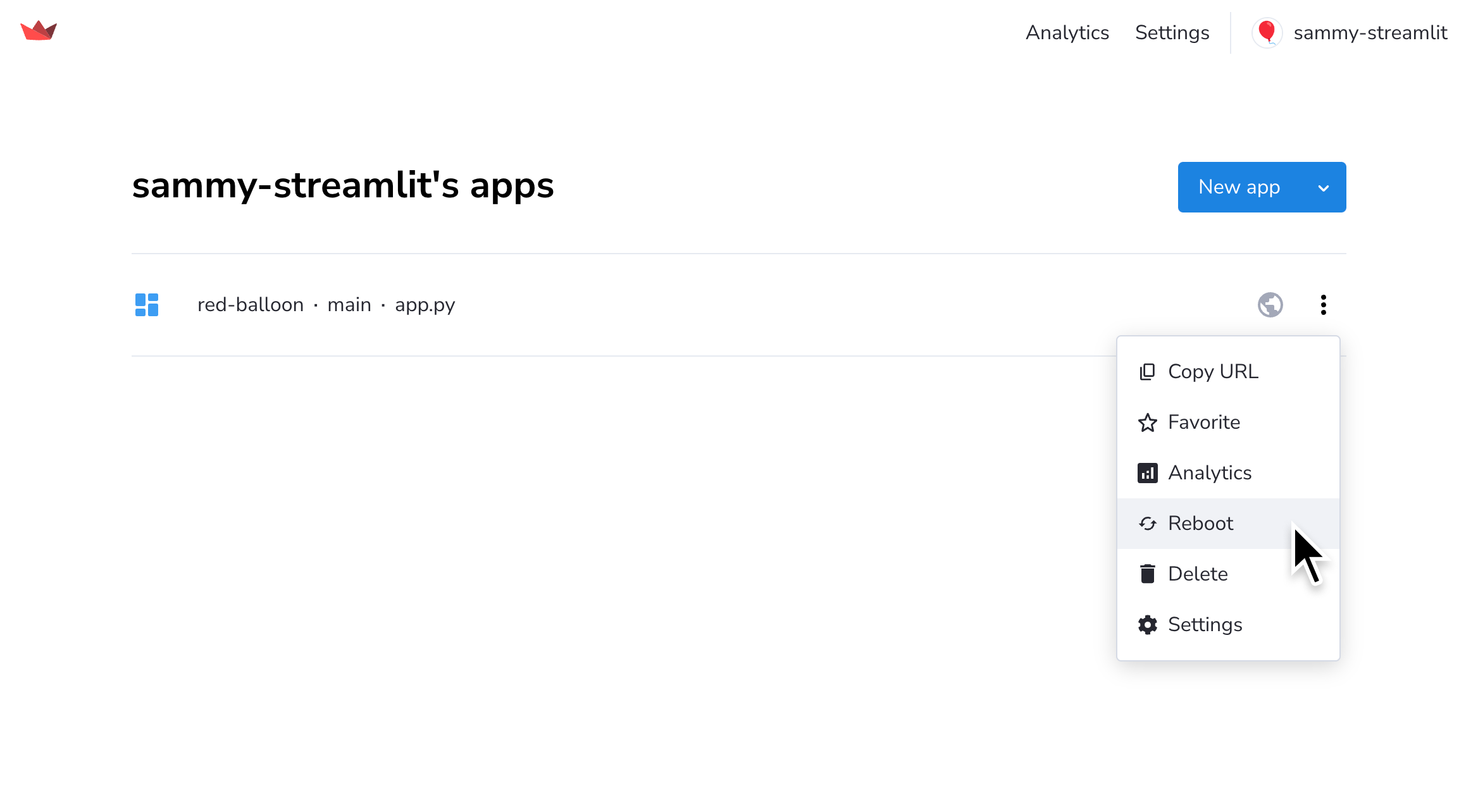
1. From your workspace at share.streamlit.io, click the overflow icon (`more_vert`) next to your app. Click "**Reboot**."
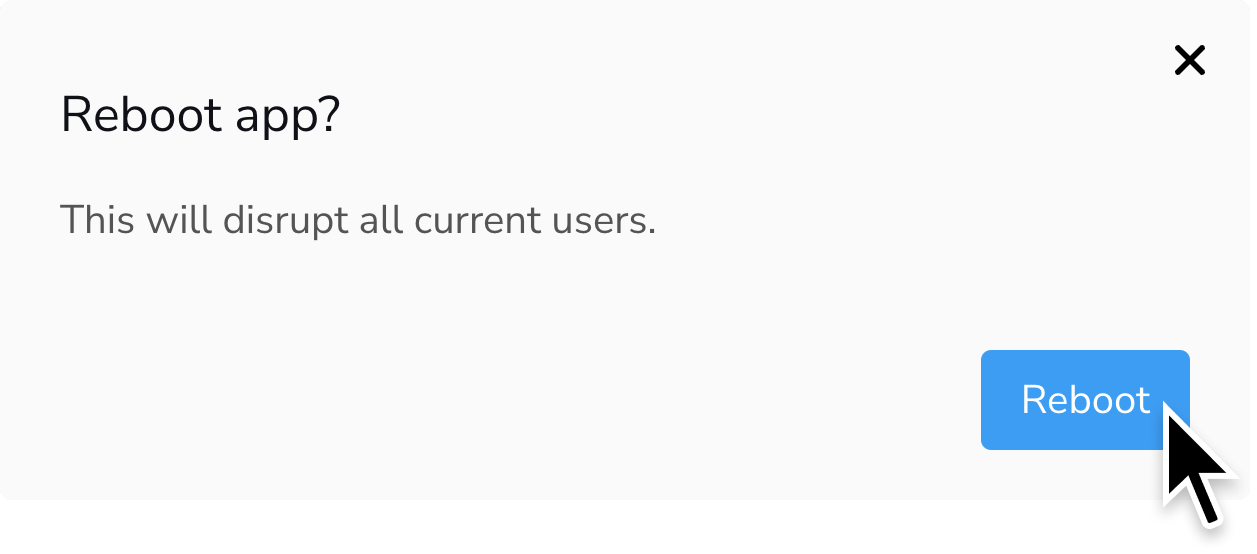
2. A confirmation will display. Click "**Reboot**."
### Reboot your app from your Cloud logs
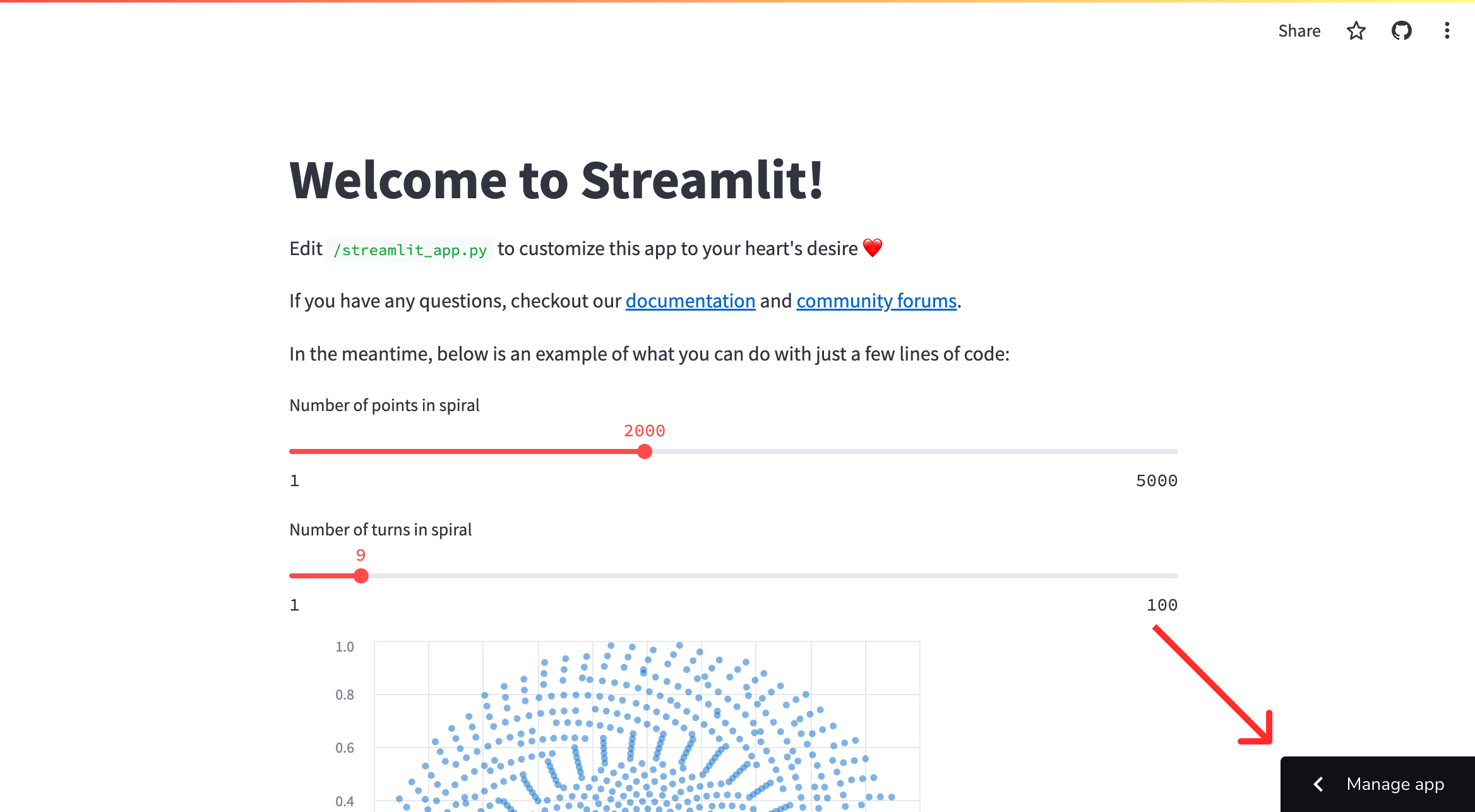
1. From your app at `.streamlit.app`, click "**Manage app**" in the lower-right corner.
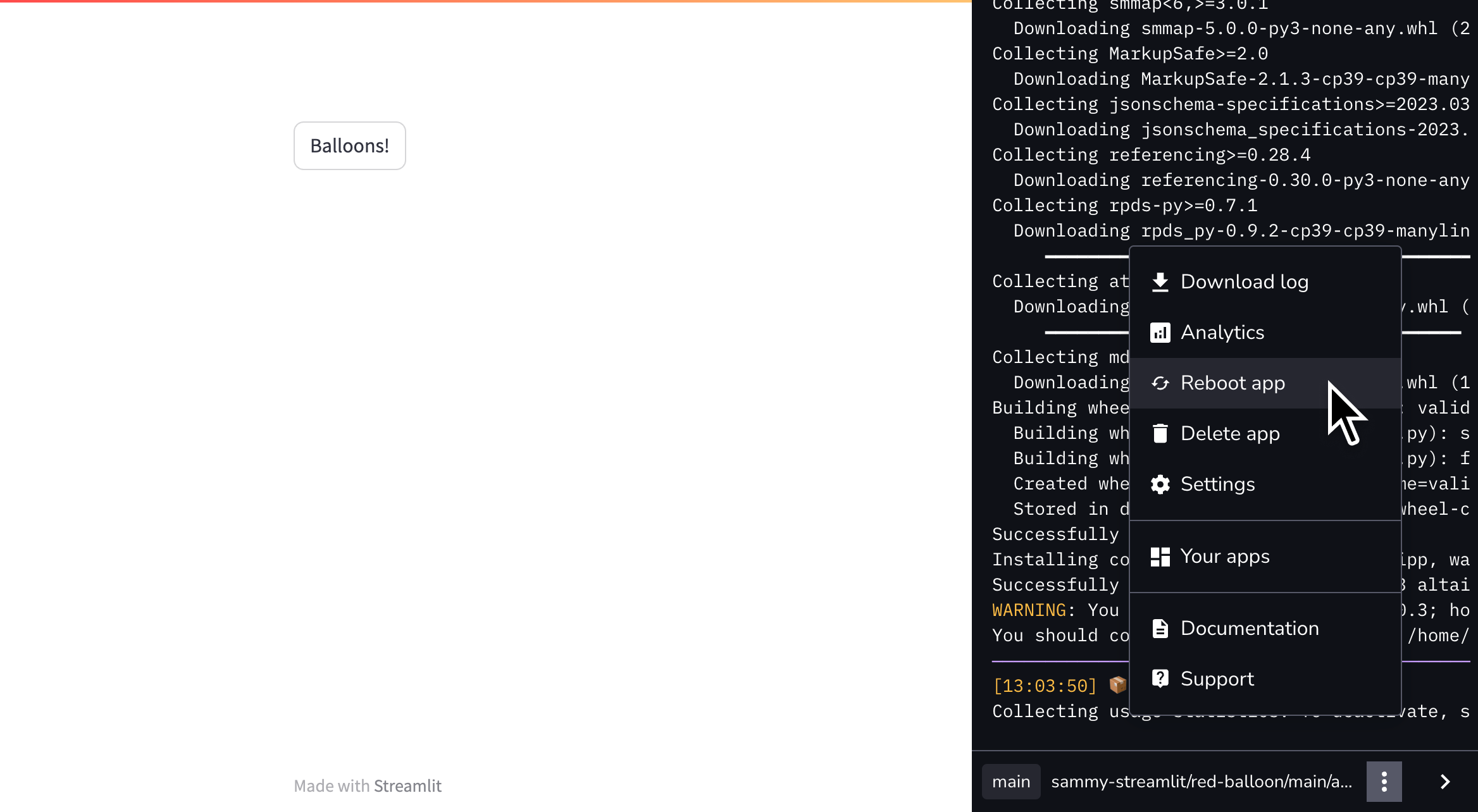
2. Click the overflow menu icon (`more_vert`) and click "**Reboot app**."
3. A confirmation will display. Click "**Reboot**."
