Secrets management
Storing unencrypted secrets in a git repository is a bad practice. For applications that require access to sensitive credentials, the recommended solution is to store those credentials outside the repository - such as using a credentials file not committed to the repository or passing them as environment variables.
Streamlit provides native file-based secrets management to easily store and securely access your secrets in your Streamlit app.
Note
Existing secrets management tools, such as dotenv files, AWS credentials files, Google Cloud Secret Manager, or Hashicorp Vault, will work fine in Streamlit. We just add native secrets management for times when it's useful.
How to use secrets management
Develop locally and set up secrets
Streamlit provides three ways to set up secrets locally using TOML format:
-
In a global secrets file at
~/.streamlit/secrets.tomlfor macOS/Linux or%userprofile%/.streamlit/secrets.tomlfor Windows:TOML# Everything in this section will be available as an environment variable db_username = "Jane" db_password = "mypassword" # You can also add other sections if you like. # The contents of sections as shown below will not become environment variables, # but they'll be easily accessible from within Streamlit anyway as we show # later in this doc. [my_other_secrets] things_i_like = ["Streamlit", "Python"]If you use the global secrets file, you don't have to duplicate secrets across several project-level files if multiple Streamlit apps share the same secrets.
-
In a per-project secrets file at
$CWD/.streamlit/secrets.toml, where$CWDis the folder you're running Streamlit from. If both a global secrets file and a per-project secrets file exist, secrets in the per-project file overwrite those defined in the global file. -
In a script-level secrets file at
.streamlit/secrets.tomlin the folder that contains your entrypoint file (the file you pass tostreamlit run). This is only different from the per-project secrets file when you run Streamlit from a different folder than your entrypoint file. Secrets in the script-level file overwrite those defined in the global and per-project files.
When several secrets files exist, Streamlit merges them by top-level key. If two files define the same top-level key or table, the value from the higher-precedence file replaces the whole value from the other file. For example, if your global file defines [connections.local] and your per-project file defines [connections.staging], only connections.staging is available because both tables belong to the top-level connections key.
Important
Add this file to your .gitignore so you don't commit your secrets!
Use secrets in your app
Access your secrets by querying the st.secrets dict, or as environment variables. For example, if you enter the secrets from the section above, the code below shows you how to access them within your Streamlit app.
import streamlit as st

# Everything is accessible via the st.secrets dict:

st.write("DB username:", st.secrets["db_username"])
st.write("DB password:", st.secrets["db_password"])

# And the root-level secrets are also accessible as environment variables:

import os

st.write(
    "Has environment variables been set:",
    os.environ["db_username"] == st.secrets["db_username"],
)
Tip
You can access st.secrets via attribute notation (e.g. st.secrets.key), in addition to key notation (e.g. st.secrets["key"]) — like st.session_state.
You can even compactly use TOML sections to pass multiple secrets as a single attribute. Consider the following secrets:
[db_credentials]
username = "my_username"
password = "my_password"
Rather than passing each secret as attributes in a function, you can more compactly pass the section to achieve the same result. See the notional code below, which uses the secrets above:
# Verbose version
my_db.connect(username=st.secrets.db_credentials.username, password=st.secrets.db_credentials.password)

# Far more compact version!
my_db.connect(**st.secrets.db_credentials)
Error handling
Here are some common errors you might encounter when using secrets management.
-
If you create a secrets file after Streamlit has already loaded another secrets file (for example, a global
~/.streamlit/secrets.toml), restart the server for the new file to be picked up. Streamlit only watches the secrets files that existed when it first loaded your secrets. -
If you try accessing a secret, but no
secrets.tomlfile exists, Streamlit will raise aFileNotFoundErrorexception: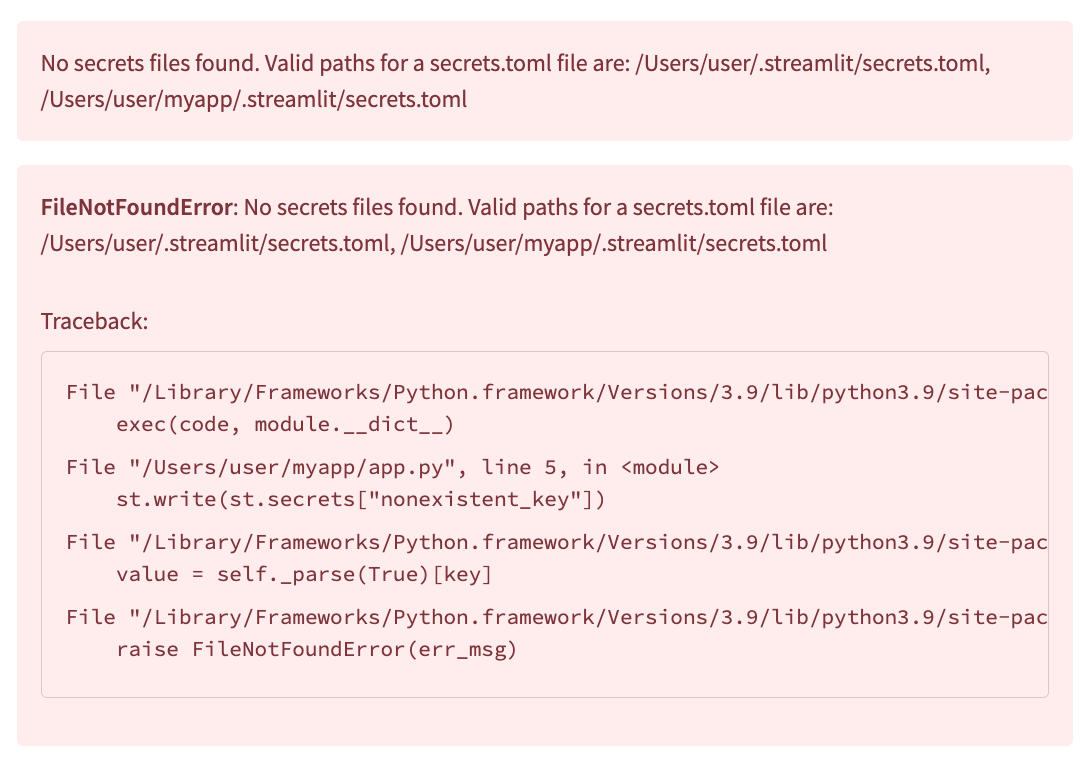
-
If you try accessing a secret that doesn't exist, Streamlit will raise a
KeyErrorexception:Pythonimport streamlit as st st.write(st.secrets["nonexistent_key"])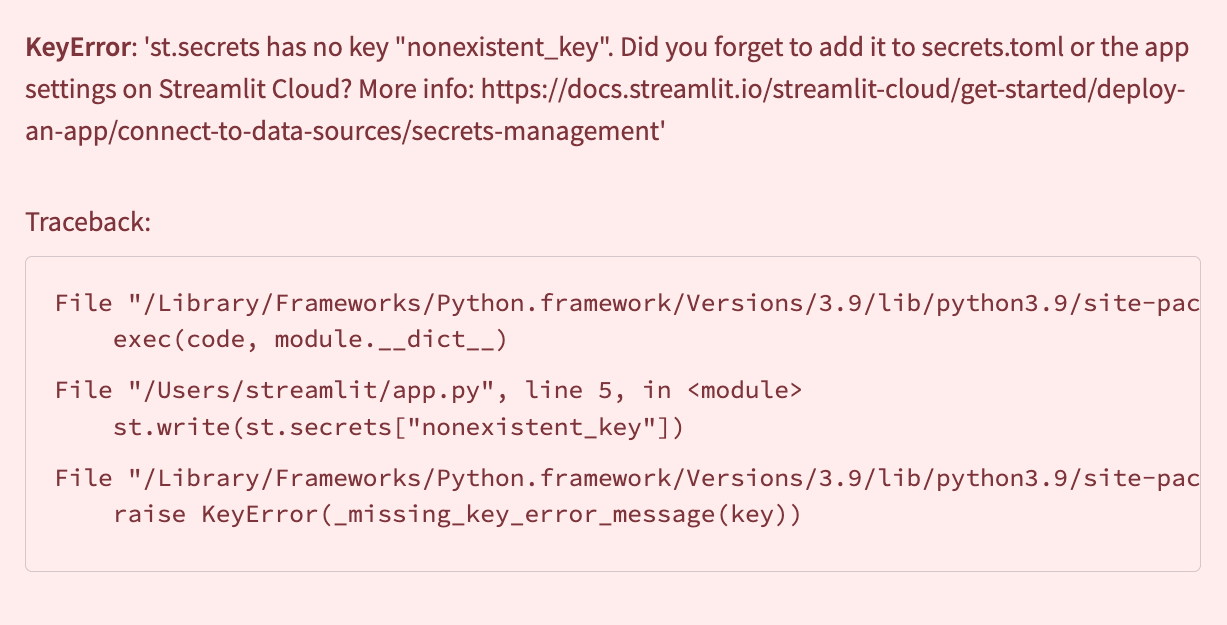
Use secrets on Streamlit Community Cloud
When you deploy your app to Streamlit Community Cloud, you can use the same secrets management workflow as you would locally. However, you'll need to also set up your secrets in the Community Cloud Secrets Management console. Learn how to do so via the Cloud-specific Secrets management documentation.
Still have questions?
Our forums are full of helpful information and Streamlit experts.